Edit the documentation#
This documentation is created with Sphinx. Sphinx uses the reStructuredText (RST) markup format and adds features like cross-referencing.
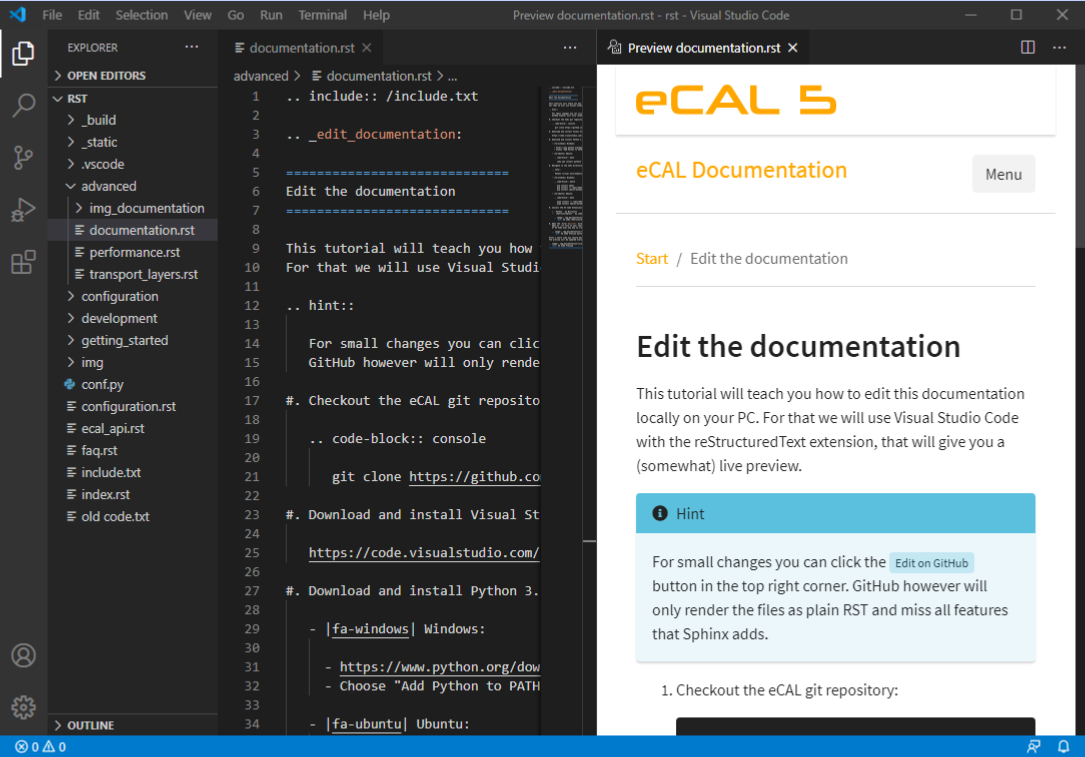
In this tutorial we will teach you how to edit the documentation locally on your PC. For that we will use Visual Studio Code with Esbonio, which provides Sphinx diagnostics and a live preview.
Hint
For small changes you can click /suggest edit button in the top right corner. GitHub however will only render the files as plain RST and miss all features that Sphinx adds.
Checkout the eCAL git repository:
git clone https://github.com/eclipse-ecal/ecal.gitDownload and install Visual Studio Code on your PC (it is available for Windows, Linux and macOS).
Download and install any Python (3.10 and up) and make sure it is added to the
PATH.Windows:
Choose “Add Python to PATH”
Ubuntu:
sudo apt install python3 python3-pip python3-wheel
Navigate to the eCAL documentation directory and create a Python virtual environment:
Windows:
cd ecal\doc\rst
py -m venv .venv
.venv\Scripts\activate
python -m pip install --upgrade pip wheel
python -m pip install -r ..\requirements.txt
Ubuntu:
cd ecal/doc/rst
python3 -m venv .venv
source .venv/bin/activate
python -m pip install --upgrade pip wheel
python -m pip install -r ../requirements.txt
Install the VS Code Extensions:
Pythonby MicrosoftEsbonioby Esbonio Developers
Create the
doc/rst/.vscode/settings.jsonand paste the following code:{ "esbonio.sphinx.pythonCommand": [ "${venv:.venv}" ], "esbonio.sphinx.buildArguments": [ "-M", "html", ".", "_build" ] }
Open the
doc/rst/directory in VS Code and select the Python interpreter fromdoc/rst/.venv. Open an.rstfile and wait for Esbonio to start the Sphinx process.Hint
If the preview does not start after changing
settings.json, press Ctrl + Shift + P and run Esbonio: Restart Language Server and Esbonio: Restart Sphinx Process from the command palette.
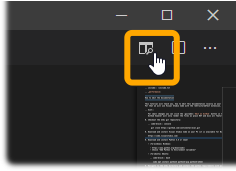
Click the preview button in the upper right corner. The preview will be updated every time you save the
.rstfile.